Using the useState hook
How to create a stateful functional component in React?
This article was originally published in https://bigomega.dev.
I tried react hooks and it's pretty awesome. With hooks, you can create functional components that can store state. It would not have been possible earlier. Hooks are a newer addition to the react library. They are included in the react 16.8 stable release.
In this blog, we will explore hooks briefly by creating a simple counter app. To get started open your terminal and type the following commands & open the project in the code editor of your choice.
$ npx create-react-app hooks-counter
$ cd hooks-counter
$ npm start
Open app.js in the /src folder, delete everything inside the <div className='App'></div> & the logo import.
The code should look like this at this point:
import React from 'react'
import './App.css'

function App() {
  return (
    <div className="App">
    </div>
  );
}

export default App
Let's also add bootstrap so that we don't have to bother about styling. Go to public/index.html and add the following link at the end of the head tag.
<link rel="stylesheet" href="https://stackpath.bootstrapcdn.com/bootstrap/4.3.1/css/bootstrap.min.css">
Now let's create a Counter component. Inside the src directory, create a file named Counter.js and copy the following code inside it.
import React from 'react'

const Counter = () => {
  const count = 0
  return (
    <div>
      <h2>A simple counter application using Hooks.</h2>
      <div className='btn-group'>
        <button className='btn btn-lg btn-outline-danger'>-</button>
        <button className='btn btn-lg btn-outline-danger'>{count}</button>
        <button className='btn btn-lg btn-outline-danger'>+ </button>
      </div>
    </div>
  )
}

export default Counter
We are setting the count as 0 by hard coding the value. Now we will explore how to make it a state and act according.
Now let's import the Counter component in the app.js file and use it in the app component.
import React from 'react'
import './App.css'
import Counter from './Counter' // highlight-line

function App() {
  return (
    <div className="App">
     // highlight-next-line
      <Counter />
    </div>
  );
}

export default App
In order to use the useState hook, we have to import it from react. To do that we can simply add the import in the first line of the Counter.js file.
import React, { useState } from 'react' // highlight-line

const Counter = () => {
  const count = 0
  return (
    <div>
      <h2>A simple counter application using Hooks.</h2>
      <div className='btn-group'>
        <button className='btn btn-lg btn-outline-danger'>-</button>
        <button className='btn btn-lg btn-outline-danger'>{count}</button>
        <button className='btn btn-lg btn-outline-danger'>+ </button>
      </div>
    </div>
  )
}

export default Counter
Now, let's use the useState to set the count value to 0.
import React, { useState } from 'react'

const Counter = () => {
  // highlight-next-line
  const [count, setCount] = useState(0)
  return (
    <div>
      <h2>A simple counter application using Hooks.</h2>
      <div className='btn-group'>
        <button className='btn btn-lg btn-outline-danger'>-</button>
        <button className='btn btn-lg btn-outline-danger'>{count}</button>
        <button className='btn btn-lg btn-outline-danger'>+ </button>
      </div>
    </div>
  )
}

export default Counter
Let's observe what's happening
Have a look at the following line.
const [count, setCount] = useState(0)
This is where we are using the first hook, useState. In the code, the count is the application state and you can think of the setCount as a function that can change the count state, just like this.setState() could change the values of the state object. The argument to useState() initializes the count with whatever it is passed with. In this case, it's 0.
Adding the event handlers
In order to change the value of the count object, we now have to add event handlers to the + and - buttons. Let's attach increment and decrement functions to with the ability to change the count object.
import React, { useState } from 'react'

const Counter = () => {
  const [count, setCount] = useState(0)

  // highlight-start
  const increment = () => {
    setCount(count + 1)
  }

  const decrement = () => {
    setCount(count - 1)
  }
  // highlight-end

  return (
    <div>
      <h2>A simple counter application using Hooks.</h2>
      <div className='btn-group'>
        // highlight-next-line
        <button className='btn btn-lg btn-outline-danger' onClick={decrement}>-</button>
        <button className='btn btn-lg btn-outline-danger'>{count}</button>
        // highlight-next-line
        <button className='btn btn-lg btn-outline-danger' onClick={increment}>+</button>
      </div>
    </div>
  )
}

export default Counter
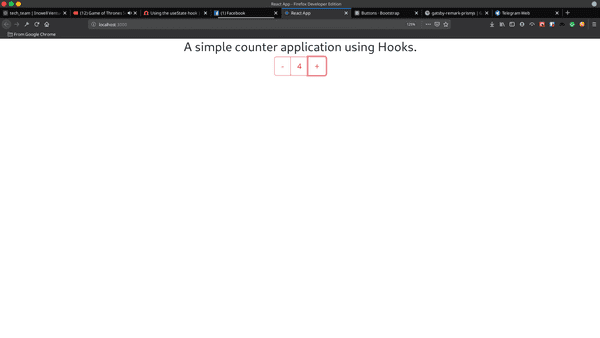
And with that, our counter application is completed. Your output should look like this now
Conclusion
Thank you for reading the blog. The source code for the example can be found at this link and if you want to learn more about react hooks, you could try exploring the official documentation here. Text
About the author
- I am a full-stack developer with 5 years of experience building web applications. Skilled in technologies such as JavaScript, TypeScript, Node.js, Go, React, and PostgreSQL. I have a strong understanding of web development principles and the ability to handle both front-end and back-end tasks. Always eager to learn new technologies and improve my skills.
Comments
Join the discussionNo comments yet. Be the first to comment.


